Help › Playing a round
Use GPS on the course
Distances and shot previews while you walk, with your score if you want it. iPhone. Needs Location Services.
Set it up
- On Play, choose your course and tees, then GPS under How you’re playing.
- Leave Keep score on if you want a score and putts box on each hole.
- Turn on Add shots as you go if you want strokes gained from the round (below).
- Tap Start round and allow location when asked.
On each hole
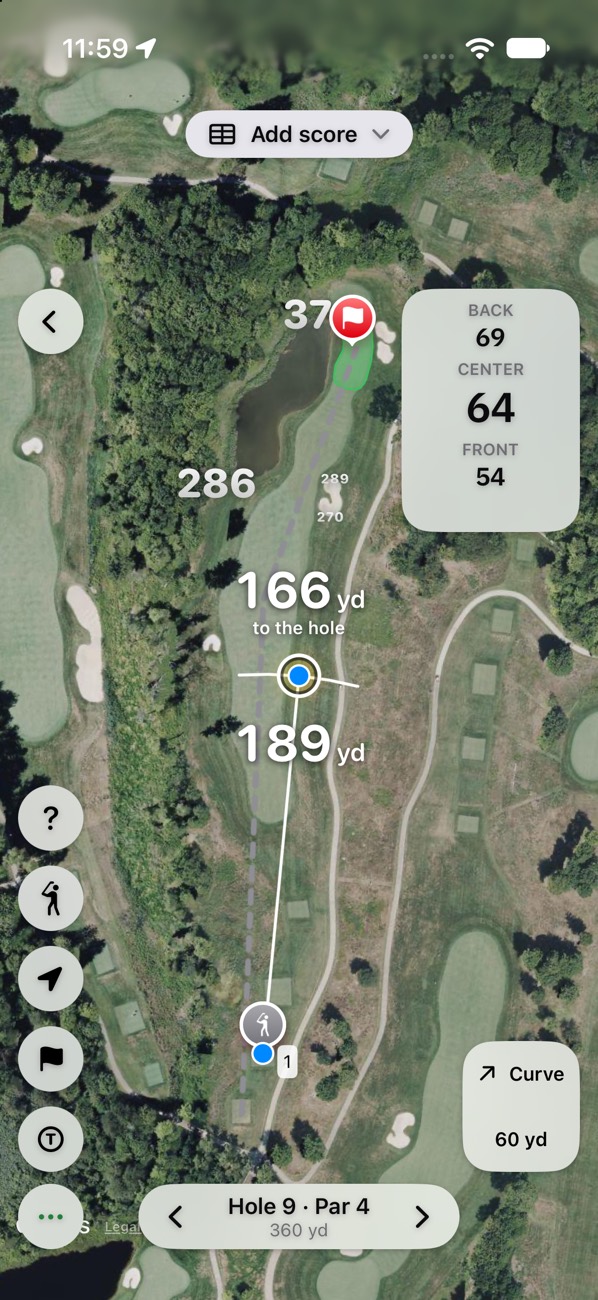
- Distances: the front, centre and back of the green show top right.
- Use my location locks your pin to the phone and follows you. Move my location places it by hand, handy if the signal is poor. You can also hold the pin and drag it.
- Preview a shot: pick a club and drag the target to see the distance and the spread for that club. Previews are never saved; they’re for planning.
- Score: use the + and − at the top of the hole. Enter putts there too.
Add shots as you go
With Add shots as you go on, a large Add shot button appears. Take your shot, and tap it from where you stand. It saves that spot as the start of the shot and asks which club.
- Walk to your ball and tap Add shot before you hit it. The phone’s location is the start.
- Pick the club.
- On the green, tap Holed after the last putt.
- Tapped by mistake? Undo. Two taps within a couple of seconds count as one.
Each shot ends where the next one starts, so you only tap when you’re at the ball. If the location isn’t accurate enough, the app says so and asks you to try again in the open. Strokes gained shows for holes where you added shots. For the rest, you can plot them afterwards.
Planning ahead
Open GPS away from the course and every hole starts at its tee. Use it to pick clubs and targets.